
AI Ads & Automation
Quick Answer
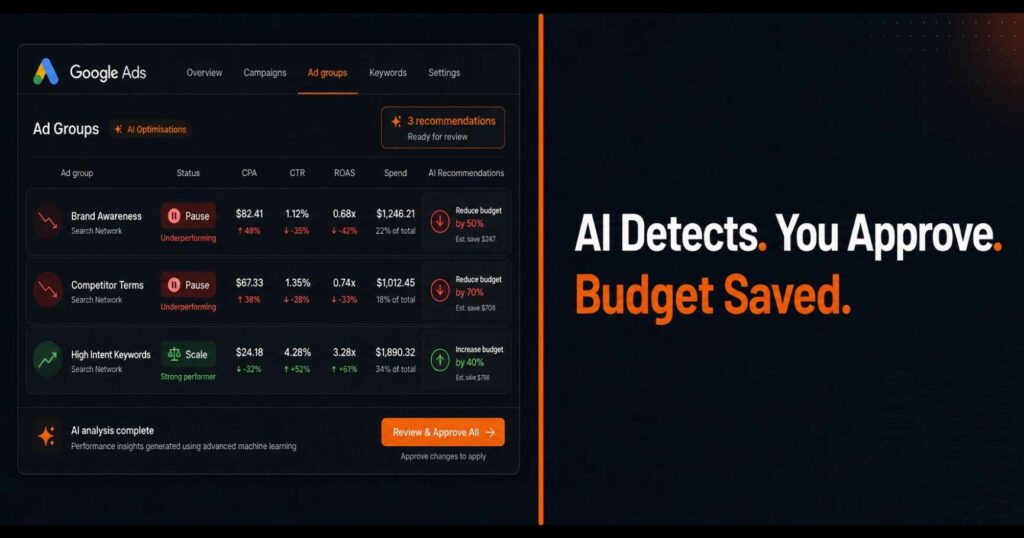
AdSpyder’s Ad Group Optimisation AI Agent detects underperforming ad groups by evaluating your live Google Ads data against user-defined rules — CPA above threshold, clicks with zero conversions, ROAS below target — over a 7- or 14-day lookback window. It surfaces specific pause recommendations with the exact reason for each flag. You review them in the ChangesPopup UI, approve, and AdSpyder pushes changes directly to your Google Ads account via the official API. No autonomous changes. Every action requires your sign-off.
Most Google Ads accounts have ad groups quietly burning budget — high CPA, clicks with no conversions, ROAS too low to justify the spend. You know they exist. The problem is catching them fast enough to matter, every week, across every campaign.
Manual audits take time. Google’s automated rules are rigid and tell you nothing about why a group got flagged. Most PPC teams only catch the damage after it compounds.
This guide covers exactly how AdSpyder’s Ad Group Optimisation AI Agent works: how it classifies underperformers, how you define the thresholds, what the approval flow looks like, and where the setup goes wrong.
7
AI agents in AdSpyder — Ad Group Optimisation is agent #3
40%
avg. CTR improvement — AdSpyder’s published estimate*
8,663
active competitor tracking projects on AdSpyder
Source: AdSpyder platform data + product surface, June 2026. *Marketing estimate, not a data-derived measurement.
In This Article
Why Manual Reviews and Google’s Automated Rules Aren’t Enough
A Google Ads account split by product, category, match type, location, and audience can have hundreds of ad groups behaving very differently. One converts at target CPA. Another spends for days with clicks and zero conversions. Neither shows up obviously at the campaign level.
Google’s built-in automated rules work for simple fixed conditions. But they have hard constraints that make them brittle in practice — and the biggest one is that they tell you nothing about why something got flagged.
| Capability | Google Automated Rules | AdSpyder AI Agent |
|---|---|---|
| Multi-metric conditions (spend AND conversions) | Limited | ✓ Supported |
| Human-readable reasoning per recommendation | ✗ No | ✓ Every flag explained |
| CPA, CTR, and ROAS rules in one place | Partial | ✓ All three + spend, clicks, impressions |
| Reactivation rules (re-enable when conditions improve) | Limited | ✓ First-class action |
| Activity log of every agent action | ✗ No unified log | ✓ Full log in dashboard |
When a client asks why their ad group was paused, “the rule fired” is not an answer. The difference AdSpyder’s agent makes is that every recommendation comes with the receipt — the specific numbers behind each flag.
How AdSpyder’s Ad Group Optimisation AI Agent Works
The most important thing to understand first: this agent is approval-based, not autonomous.
Important
The agent reviews your account, surfaces pause recommendations with the specific metric values that triggered each flag, and waits for your approval. The product UI is explicit: “Review and customize the suggested optimizations before applying them to your campaign.” No change touches your live Google Ads account until you click Apply. (AdSpyder platform data, June 2026)
Here is the full flow, step by step:
Connect your Google Ads account via OAuth
AdSpyder connects with full Google Ads API access — reads campaign metrics, ad group metrics, keyword performance, and search term data. Approved changes are written back through the same API connection.
Agent fetches ad group metrics over your lookback window
Default lookback is 7 days. 14 days is explicitly supported. Lookback period is a required field — the agent will not run a rule without it. This is the data window used to evaluate each rule condition.
Agent classifies each ad group against your rule set
Rules follow the schema: {metric, operator, threshold, lookbackPeriod}. You define them. The agent enforces them. Multiple conditions can be combined — for example: “pause if spend ≥ ₹X AND conversions = 0 over 7 days.”
Agent surfaces recommendations with full reasoning
Every flagged ad group comes with a human-readable explanation — not just “CPA too high” but the specific numbers: which keywords, what CPA, how it compares to your account average, over what lookback. You see the receipt before you sign off.
You review in the ChangesPopup and approve
The ChangesPopup UI shows all recommended actions before any of them are applied. Review each one, customize or reject individual items. Nothing is applied in bulk without your say-so.
Apply — changes push live via Google Ads API
Approved actions go to your live account through the official Google Ads API. Every applied action is logged in your activity feed — visible in the dashboard. (AdSpyder platform data, June 2026)
Try the AI Agent
Stop Auditing Manually. Let the Agent Flag It.
AdSpyder’s Ad Group Optimisation AI Agent reviews your live Google Ads account against your rules — CPA, CTR, ROAS — and surfaces pause-ready ad groups with full reasoning. You stay in control of every change.
The 3 Underperformance Patterns the Agent Is Built to Catch
The agent is not a generic “cut anything below X” bot. It recognizes three specific performance patterns and gives a different recommended action for each. These are the actual rule examples from the product — with the exact reasoning strings the UI surfaces. (AdSpyder platform data, June 2026)
Pattern 1 — High CPA
What it flags: Keywords or ad groups spending significantly more per conversion than your account average.
Reasoning example from the product: “[keyword 1] (₹18.85 CPA), [keyword 2] (₹19.09 CPA) are spending 52% more per conversion than your account average of ₹12.38 — ranking in the top 25% most expensive keywords.”
Default recommended action: Reduce CPA with bid agent
Pattern 2 — Clicks with Zero Conversions
What it flags: Ad groups getting traffic that isn’t converting — budget spent with no return.
Reasoning example from the product: “[keyword] (8 clicks, ₹29.25 spent) is attracting clicks but failing to convert — traffic is flowing but producing zero results.”
Default recommended action: Reduce bids to save spend
Pattern 3 — High ROAS Candidates to Scale
What it flags: Top-quartile ROAS ad groups with strong engagement and lowest-quartile acquisition costs — the opposite of underperformers, but equally worth surfacing.
Reasoning example from the product: “17 high ROAS keywords to scale — top-quartile ROAS keywords outperforming with strong engagement and lowest-quartile acquisition costs.”
Default recommended action: Increase budget (not pause)
Note on Pattern 3
The same rule run that surfaces underperformers also surfaces scale candidates. You are not just finding what to cut — you are simultaneously finding what to push harder. A well-configured audit session does both.
Step-by-Step: Setting Up a Pause Rule in AdSpyder
Here is the exact workflow for configuring a pause rule using the Ad Group Optimisation AI Agent.
Connect your Google Ads account
Go to AdSpyder’s AI Agent for Google Ads and connect via OAuth. You can connect multiple accounts. This gives the agent read and write access via the official Google Ads API.
Open the Ad Group Optimisation AI Agent and scope your campaigns
This is agent #3 in AdSpyder’s suite. Select the specific campaigns you want the rules to apply to. Do not apply pause rules to all campaigns by default — branded campaigns, learning-phase campaigns, and seasonal campaigns need to be scoped out manually (more on this below).
Define your pause rule conditions
Select a metric (CPA, CTR, ROAS, spend, clicks, conversions, impressions), an operator, and a threshold. Set your lookback period — 7 days is the default. You can combine multiple conditions in one rule.
A solid starting rule: spend ≥ [your floor] AND conversions = 0 over 7 days. This ensures you are only flagging ad groups that have had a real opportunity to convert and didn’t.
Run the agent and review recommendations
The agent evaluates your account against the active rules and surfaces flagged ad groups. Each recommendation includes the specific metric values that triggered it — you see exactly why each one was flagged.
Approve in the ChangesPopup — changes go live
Review each recommended action, customize if needed, then click Apply. AdSpyder pushes the approved changes via the Google Ads API and logs every action in your activity feed.
Getting Your Thresholds Right
The agent enforces the thresholds you set. Set them wrong and the recommendations will be wrong — either too aggressive (pausing things mid-recovery) or too lenient (letting real underperformers slide). There is no universal correct default, because every account is different. Here are the principles that produce reliable rules:
| Metric | Threshold principle | Common mistake |
|---|---|---|
| CPA | Set to 1.5–2× your target CPA. Anything tighter flags too many naturally high-variance groups. | Setting threshold at exactly target CPA — creates noise |
| CTR | Use your account average CTR as the floor, not industry benchmarks. Your account baseline is the reference point. | Using generic “2% is good” figures that don’t reflect your vertical |
| ROAS | Floor should be minimum breakeven ROAS for your margin. Below that is a confirmed loss. | Setting ROAS floor too high — pauses profitable ad groups under target but not losing money |
| Spend floor | Always combine a spend floor with conversion rules. “Zero conversions” without a minimum spend threshold flags groups before they have had a fair run. | Omitting the spend floor — pausing after ₹5 spend and 0 conversions |
Starting point for new setups
Run the agent for a week in review-only mode. Do not apply anything. Look at what it surfaces and whether the reasoning matches your judgment. Calibrate thresholds after that first pass before pushing any approvals live.
What You Must Manually Exclude from Pause Rules
The agent does not auto-detect branded campaigns, learning-phase campaigns, or strategic test campaigns. You are responsible for scoping rules to the right campaigns. This is not a workaround — it is the correct way to use any rule-based system.
Pre-Rule Setup Checklist — Campaigns to Scope Out
Branded campaigns — Pausing a branded campaign hands search real estate directly to competitors. Scope these out entirely. Use AdSpyder’s Google Ads Spy to check who is bidding on your brand terms before making any changes.
Campaigns in the learning phase (first 1–2 weeks) — Google’s algorithm needs conversion data to optimize. Pausing during this window resets the learning and compounds the problem.
Seasonal campaigns — An ad group with zero conversions in off-season isn’t underperforming; it’s correctly inactive. Use separate rules or exclude seasonal campaigns from the agent’s scope.
Strategic test campaigns — If you are intentionally testing a new audience or messaging angle, don’t let a pause rule kill the test before you have enough data.
Ad groups below minimum data threshold — Define a spend or clicks floor in your rule conditions. Flagging an ad group after 5 clicks and 0 conversions is not meaningful signal.
Reactivation: The Agent Works Both Ways
Pausing underperformers is only half the job. The agent supports reactivation — enable_adgroup is a first-class action in the same system. You can configure a reactivation rule the same way you configure a pause rule: “enable if CPA drops below target over 7 days” or “enable if ROAS exceeds breakeven.” This gives you a complete loop — pause when conditions deteriorate, re-enable when they recover — without manually monitoring every paused group. (AdSpyder platform data, June 2026)
Manual Review vs Google Rules vs Scripts vs AdSpyder AI Agent
Google Ads has native ways to pause ad groups and advanced advertisers can use scripts. The difference is how much setup, monitoring, and reasoning the PPC team still manages manually.
| Method | Best For | Key Limit | Where AdSpyder Adds Value |
|---|---|---|---|
| Manual review | Small accounts | Slow, easy to miss hidden leaks | Automates monitoring, highlights what needs attention |
| Google automated rules | Simple fixed conditions | No reasoning shown, applies changes silently | AI reasoning, multi-signal recommendations, review flow |
| Google Ads scripts | Technical teams with JavaScript skills | Hard for non-technical PPC teams to maintain | Marketer-friendly workflow, no scripting required |
| AdSpyder AI Agent | Agencies, PPC teams, multi-campaign accounts | Still needs correct thresholds and approval discipline | Rule setup, AI detection, reasoning, review, controlled application — one workflow |
Honest Limitations to Know Before You Set This Up
No AI agent works well on bad inputs. These are the real limitations — not buried caveats, but things that will directly affect your results:
The agent is only as good as your thresholds
Bad threshold = bad recommendation. If your CPA target is wrong for your margin, the recommendations reflect that. There is no built-in correct default.
Pausing during learning phase can backfire
Google’s algorithm needs conversion data. Pausing in the first 1–2 weeks — even if CPA looks high — resets the learning and can set the campaign back further.
AI cannot guarantee performance improvement
Pausing a confirmed loser eliminates one source of waste. Campaign-level performance depends on many other factors. The agent removes known problems — it does not guarantee the rest improves.
Treat AI recommendations as decision support, not blind automation
The agent finds the risk pattern. You decide whether the context — landing page quality, offer strength, campaign age, competitor pressure — supports the action. Use AdSpyder’s Landing Page Analysis and Ad Library to check whether a weak conversion rate is a targeting problem or a page problem before pausing.
FAQs
Does the AI agent automatically pause ad groups without my approval?
No. AdSpyder’s Ad Group Optimisation Agent is approval-based. It surfaces pause recommendations with full reasoning, and you review them in the ChangesPopup UI before any change is pushed to your live Google Ads account. The product is explicit: “Review and customize the suggested optimizations before applying them to your campaign.”
What metrics can I use to define an underperforming ad group?
The agent supports rules on CPA, CTR, and ROAS as primary metrics, plus spend, clicks, conversions, and impressions in rule conditions. Multiple conditions can be combined in a single rule — for example: “pause if spend ≥ ₹X AND conversions = 0 over 7 days.”
What lookback windows does the agent support?
Default lookback is 7 days. 14 days is explicitly supported. Lookback period is a required field — the agent will not run a rule without it. The right window depends on your traffic volume and conversion cycle. (AdSpyder platform data, June 2026)
Can the agent also re-enable paused ad groups?
Yes. Re-enabling a previously-paused ad group (enable_adgroup) is a first-class action in the same system. You can configure reactivation rules the same way you configure pause rules — for example: “enable if CPA drops below target.” This gives you a complete pause-and-reactivate loop without manual monitoring.
Should I exclude branded campaigns from pause rules?
Yes, and you must do this manually by scoping rules to specific campaigns. The agent does not auto-detect branded campaigns. Exclude them by not applying the pause rule to those campaign IDs. Same applies to learning-phase campaigns, seasonal campaigns, and strategic test campaigns.
Is this the same as Google’s automated rules?
No. Google’s automated rules fire and apply changes silently, with no reasoning shown. AdSpyder’s agent surfaces every recommendation with the specific metric values that triggered it, holds all changes for review before applying, and logs every approved action in your activity feed. When a client asks why an ad group was paused, you have the exact numbers to show them.
Stop Letting Underperformers Drain Your Budget
AdSpyder’s Ad Group Optimisation AI Agent reviews your live Google Ads account against your rules — CPA, CTR, ROAS — and surfaces pause-ready ad groups with the exact reasoning behind every flag. You stay in control of every change. Set it up once. Review weekly. Stop the bleed.